Google Chrome's stealthy AI download: What you need to know and how to reclaim storage
Introduction
If you've noticed your hard drive quietly filling up without explanation, Google Chrome might be the culprit. Without warning or consent, the browser has been downloading AI-related files—up to 4 GB on some systems—on both Windows and macOS. This stealthy data grab has left users frustrated and concerned about privacy. In this article, we'll explain what's happening, how to check if your system is affected, and, most importantly, how to remove these files and prevent future silent downloads.
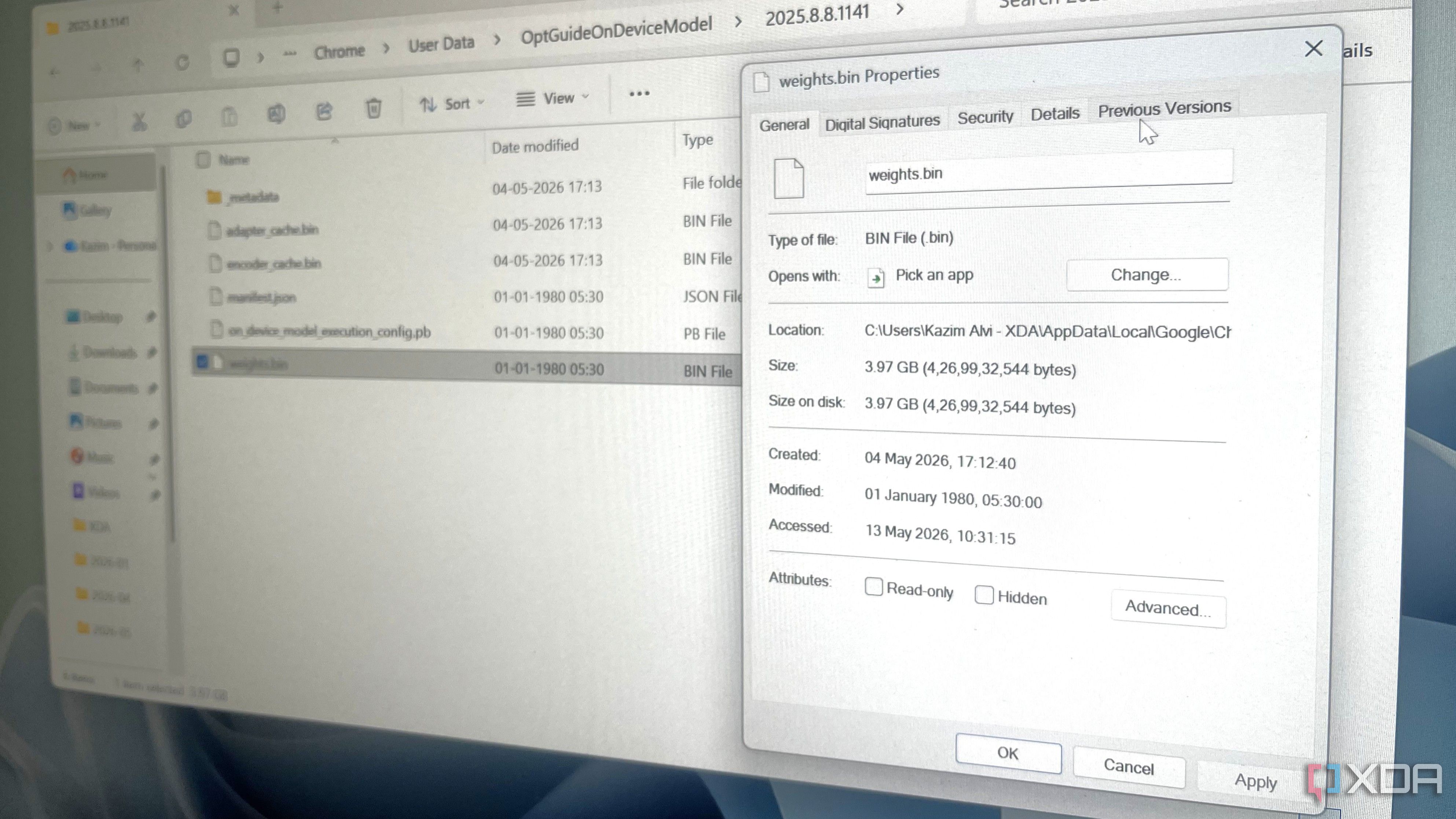
Understanding the AI files
Chrome's AI files are part of Google's push to bring on-device machine learning to the browser. These files power features like the built-in AI writing assistant, automatic tab grouping, and perhaps the upcoming Gemini Nano integration. While these could improve functionality, Google rolled out the download as a background update—without notifying users or asking for permission. For many, this feels like an invasion of storage space and trust.
The exact file is often located in Chrome's user data directory, named something like OnDeviceAI or AI Models. It may appear as a folder containing model weights and metadata. On a typical Windows PC, it can consume between 1 and 4 GB; on macOS, the size is comparable.
How to check if you have these files
Before removing anything, confirm whether Chrome has downloaded the AI data on your machine:
- On Windows: Navigate to
C:\Users\[YourUsername]\AppData\Local\Google\Chrome\User Data\. Look for a folder namedOnDeviceAIor similar. Check its properties for size. - On macOS: Open Finder, press Cmd+Shift+G, enter
~/Library/Application Support/Google/Chrome/, and look for the same folder. - Alternatively, open Chrome's internal storage settings by typing
chrome://settings/systemand see if there's an option to manage local AI models. If it shows a large amount used, you've been affected.
Step-by-step removal guide
Removing the AI files is straightforward, but you need to do it carefully to prevent Chrome from re-downloading them immediately.
On Windows
- Close Chrome completely (end the process in Task Manager if needed).
- Open File Explorer and go to
%LOCALAPPDATA%\Google\Chrome\User Data\. - Locate the folder named
OnDeviceAI(orAIif present). Right-click and select Delete. - Empty the Recycle Bin.
On macOS
- Quit Chrome (right-click the icon in Dock and choose Quit).
- From Finder, go to
~/Library/Application Support/Google/Chrome/. - Find the
OnDeviceAIfolder, drag it to Trash, then empty Trash.
Tip: After deletion, restart Chrome and check that the folder doesn't reappear. If it does, you'll need to disable the feature that triggers the download.
Preventing future silent downloads
To stop Chrome from re-downloading the AI files, you can adjust a few settings:
- Disable AI features: Go to
chrome://flags/and search forAI. Disable entries like On-Device AI Inference and Gemini Nano. Be aware that this may affect certain experimental features. - Opt out of AI in settings: Visit
chrome://settings/ai(if available) and toggle off anything related to on-device AI or enhanced features. - Block background updates: In Chrome's settings, go to
chrome://settings/systemand turn off Continue running background apps when Google Chrome is closed.
Note that Google may push similar updates in future versions, so keep an eye on your storage regularly.
Conclusion
Chrome's silent installation of 4 GB AI files is a troubling trend in modern software—features rolled out without user consent. While the removal process is simple, staying proactive by checking flags and settings is key. Your storage is yours, not Google's. With the steps above, you can reclaim that space and maintain control over your PC.
Related Articles
- Accelerating JavaScript Load Times with Explicit Compile Hints in V8
- Understanding the Block Protocol: Simplifying Structured Data on the Web
- How to Use the CSS contrast-color() Function for Better Accessibility
- Mastering Pull Request Performance: A Guide to Optimizing Diff Views at Scale
- How to Use MDX in Astro for Richer Content
- Astro Developers Get New Markdown Component: Cleaner Code, Smarter Typography
- Vue Component Testing Now Possible Entirely in Browser – No Node.js Required
- Making Your Web Content Machine-Readable: A Step-by-Step Guide to the Block Protocol