How to Upgrade to Ubuntu 26.04 LTS: A Step-by-Step Guide
Introduction
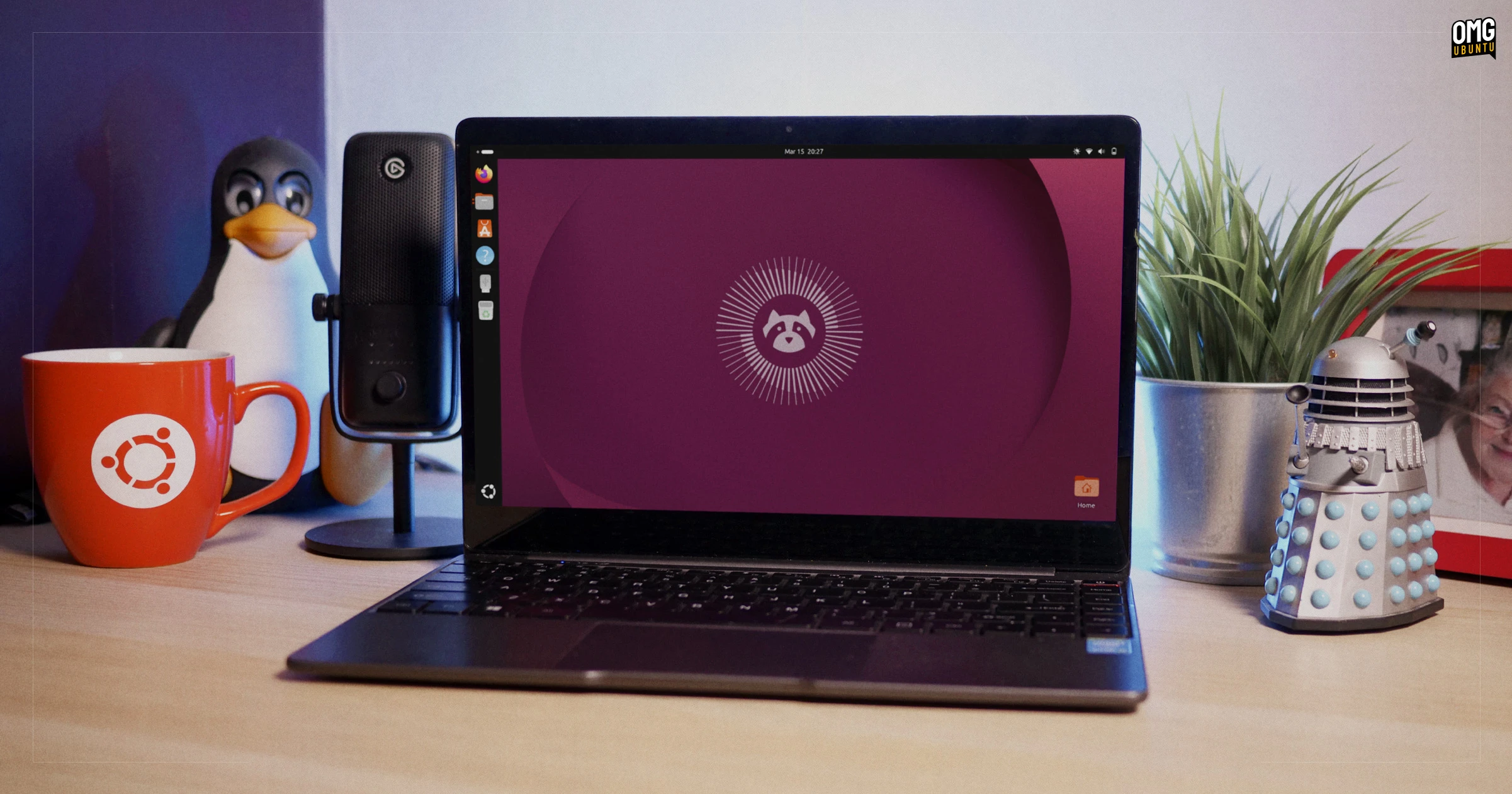
Ubuntu 26.04 LTS ‘Resolute Raccoon’ marks a milestone as the first Long-Term Support release to ship exclusively with Wayland, leaving behind the legacy Xorg session. Powered by the Linux 7.0 kernel and the GNOME 50 desktop environment, it introduces a fresh video player, a revamped system monitor, and Deb package management directly within the App Center. Canonical guarantees at least five years of updates, with an additional five years of security coverage via Ubuntu Pro. If you’re currently running Ubuntu 24.04 LTS, this guide walks you through the upgrade process to ensure a smooth transition.

What You Need
- Existing Ubuntu 24.04 LTS installation – fully updated to the latest packages.
- Stable internet connection – the upgrade downloads several gigabytes of data.
- Backup of important files – use Deja Dup or manual copying to external storage.
- At least 10 GB free disk space – for the download cache and new packages.
- Ubuntu Pro subscription (optional but recommended) – to unlock the full 10-year security coverage.
Step-by-Step Upgrade Process
Step 1: Prepare Your Current System
Before initiating the upgrade, ensure your Ubuntu 24.04 LTS is up to date. Open a terminal and run the following commands:
sudo apt update
sudo apt upgrade -y
After upgrading, reboot your system to apply any pending kernel changes. This minimizes conflicts during the major version jump.
Step 2: Back Up Your Data
Even though upgrades are generally safe, mistakes can happen. Use the built-in Backups tool or manually copy your /home directory and any critical configurations (/etc) to an external drive. Pay special attention to custom application settings.
Step 3: Check Hardware Compatibility
Ubuntu 26.04 LTS is Wayland-only – there is no fallback to Xorg. Make sure your graphics hardware works well with Wayland. Most modern Intel, AMD, and NVIDIA GPUs (with proprietary drivers) are supported, but older cards may cause issues. You can test Wayland on your current 24.04 by selecting the Wayland session at the login screen before upgrading.
Step 4: Enable the Upgrade Tool
Ubuntu upgrades are handled by the update-manager or the command-line do-release-upgrade tool. Ensure you have the latest version:
sudo apt install update-manager-coreThen, refresh the package cache:
sudo apt updateStep 5: Launch the Upgrade
From the terminal, run:
sudo do-release-upgradeAlternatively, use the graphical Software Updater – after checking for updates, it should notify you of a new Ubuntu release. Follow the on-screen prompts. The process will download packages for GNOME 50, the Linux 7.0 kernel, and the new system applications (such as the Video Player and System Monitor). Be patient; the download may take 30–60 minutes depending on your connection.
Step 6: Respond to Prompts During Installation
During the upgrade, you’ll be asked to confirm configuration file changes. The default answer is usually safe, but if you’ve heavily customized system files, consider reviewing each prompt. The installer will also ask whether to remove obsolete packages – it’s safe to choose ‘yes’.
Step 7: Reboot and Verify
Once the upgrade completes, reboot your machine. After logging in, verify the version:
lsb_release -aYou should see “Ubuntu 26.04 LTS”. Check that the GNOME desktop is version 50 by running:
gnome-session --versionAlso confirm your kernel:
uname -rIt should show 7.0.x.
Tips and Considerations
- Explore the new apps – Open App Center to manage Debian packages directly. The new Video Player supports more codecs out of the box, while the System Monitor now provides real-time process insights with a modern interface.
- Enable Ubuntu Pro – Register for a free personal token at ubuntu.com/pro to extend security updates to 10 years. This is especially valuable for production systems.
- Wayland adjustments – If you rely on screen sharing or remote desktop, install
gnome-remote-desktop(if not already present) and configure it via Settings. Note that some legacy X11-only applications may not work – check for Wayland-compatible alternatives. - Recovery plan – In case of a failed upgrade, you can revert to the previous kernel from the GRUB menu (select “Advanced options”). If the system becomes unstable, reinstall from scratch using the Ubuntu 26.04 ISO, but keep your backup safe.
- Performance improvements – The Linux 7.0 kernel brings better scheduling and hardware support. Expect snappier performance on modern SSDs and improved battery life on laptops.
Related Articles
- Fedora Linux 44 Overhauls Atomic Desktops: FUSE2 Removed, Documentation Unified
- Fedora's Swift Response to Kernel Security Threats: How the Project Keeps Users Safe
- How Meta’s AI Agents Revolutionize Capacity Efficiency at Hyperscale
- Critical Linux Kernel Flaw 'Dirty Frag' Exploited in the Wild – Updates Urged Immediately
- Major Linux Distributions Release Critical Security Patches
- German Government Backs KDE with €1.28 Million Grant for Desktop and Infrastructure Enhancements
- How to Check and Remove Malware from Compromised Cemu Linux Builds
- Critical Linux Kernel Privilege Escalation: Inside the copy.fail Vulnerability