How to Reclaim SSD Space by Removing Hidden Old Drivers from Windows
Introduction
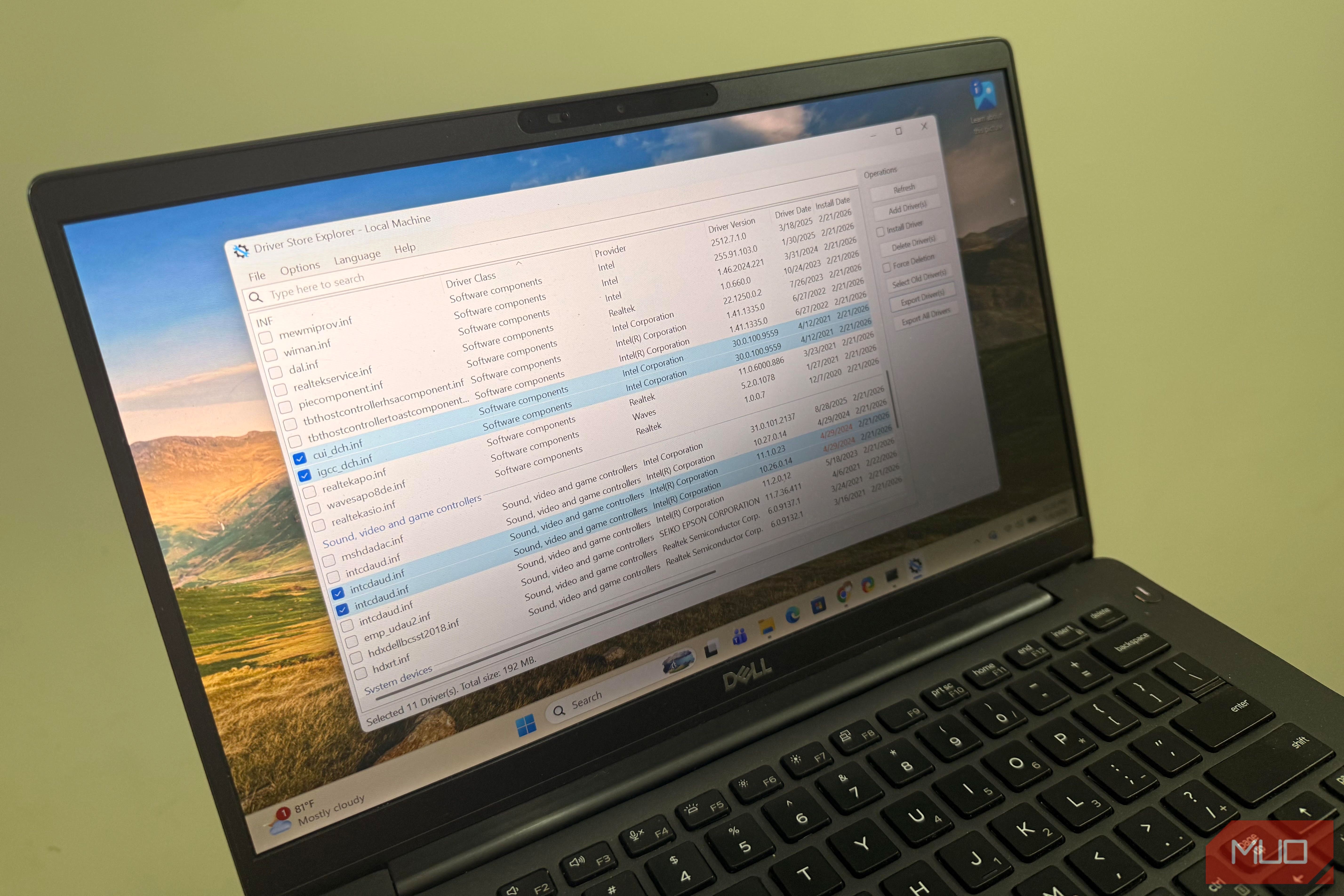
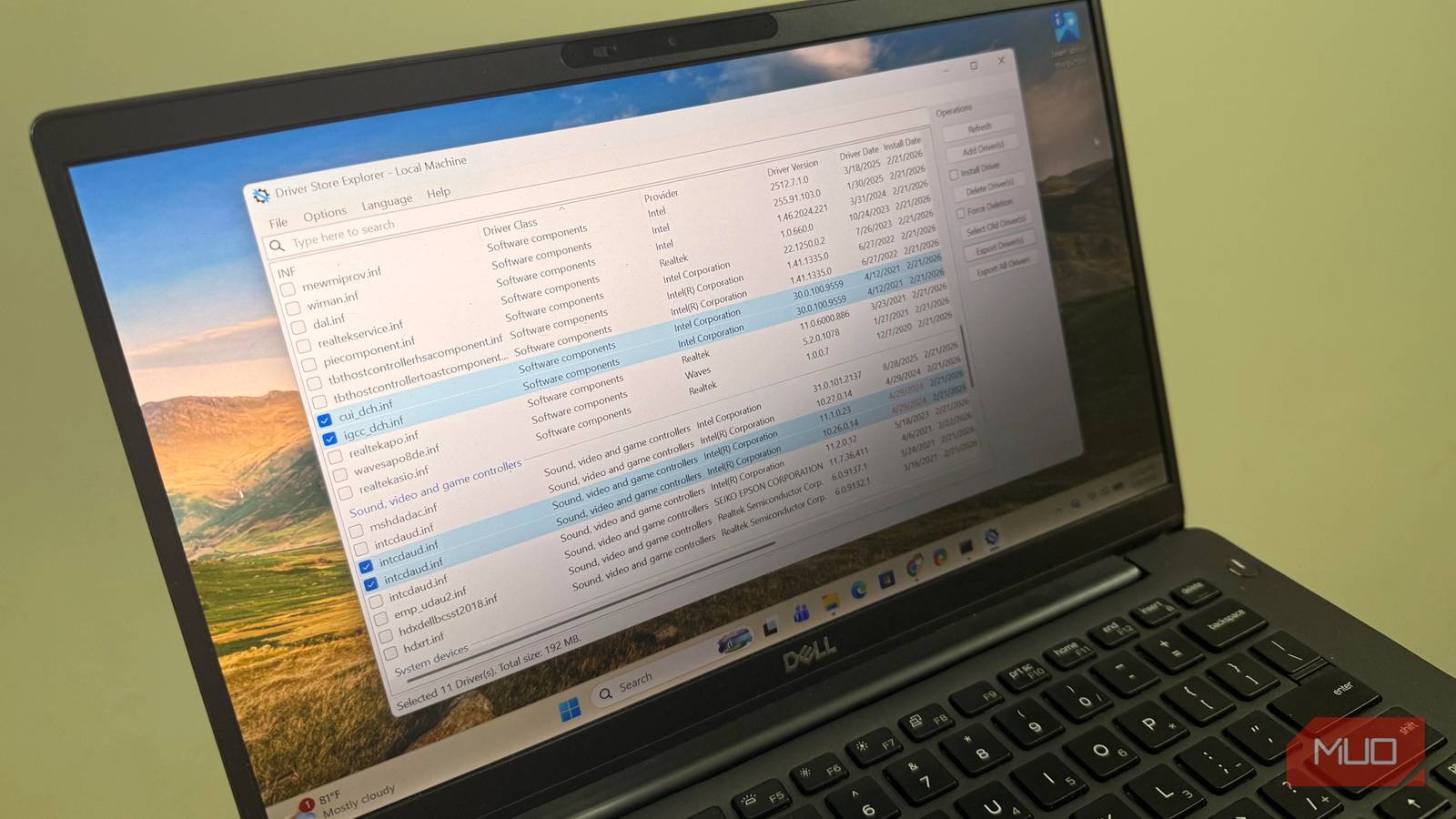
After using your Windows PC for a year, you might be surprised to discover that a hidden folder on your system drive has been quietly swelling since day one. It’s the Driver Store, a repository where Windows keeps every driver version it has ever downloaded or installed. This store isn’t visible in the standard Storage settings, and built-in cleanup tools like Disk Cleanup or Storage Sense won’t flag it. Over time, these old drivers can consume gigabytes of precious SSD space. Fortunately, you can manually clear them out using a built-in command-line tool called pnputil. This guide walks you through the process safely and effectively.
What You Need
- A Windows computer (Windows 10 or Windows 11 recommended)
- Administrator privileges (required to run pnputil)
- A few minutes of your time
- Basic comfort with Command Prompt or PowerShell
Step-by-Step Instructions
Step 1: Open Command Prompt as Administrator
To delete old drivers, you need elevated permissions. Press the Windows key, type cmd, right-click Command Prompt (or PowerShell), and select Run as administrator. Click Yes when prompted by User Account Control.
Step 2: List All Drivers in the Driver Store
Run the following command to see every driver package Windows has stored:
pnputil /enum-driversThis displays a long list. Each entry includes a Published Name (e.g., oem0.inf), the driver provider, class, version, and date. Look for drivers that are not currently in use. The third-party driver packages (like from NVIDIA, Intel, Realtek) are the prime candidates for removal—those provided by Microsoft are often system-critical.
Step 3: Identify Unnecessary Drivers
Scroll through the list and note the Published Name of any driver that you suspect is old or no longer needed. The Driver Date and Version columns help you spot outdated ones. For example, if you upgraded your graphics driver, the previous version remains in the store and can be safely removed. Avoid deleting any driver that is currently installed (check the “Installed” column) or that belongs to critical system components.
If you want to be extra cautious, you can examine the driver’s details. Run:
pnputil /enum-drivers /detailThis displays additional info including which hardware devices use the driver. Look for entries that list Hardware IDs that differ from your current hardware—those are almost certainly safe to remove.
Step 4: Delete an Old Driver Package
Once you’ve identified a driver to remove, use the following command, replacing oem0.inf with the actual published name:
pnputil /delete-driver oem0.infYou may be prompted to confirm. Type Y and press Enter. If the driver is currently in use, Windows will refuse to delete it—this is a safety feature. If deletion succeeds, the driver package is removed from the Driver Store and cannot be reinstalled automatically (Windows will rely on any newer version or download a fresh copy if needed).
Step 5: Repeat for Other Old Drivers
Repeat Step 4 for each outdated or redundant driver you identified in Step 3. Batch deletion is not supported; you must delete one at a time. This is intentional to prevent accidental removal of a critical driver.
Step 6: Verify the Space Freed
After deleting a few drivers, check how much space you reclaimed. Open File Explorer, right-click your system drive (usually C:), select Properties, and note the free space before and after. You can also use a tool like TreeSize Free or WinDirStat to see the change in the hidden folder C:\Windows\System32\DriverStore\FileRepository. The pnputil command only removes the registry entries; the actual files remain until Windows cleans them up, but they will no longer be indexed. To force deletion of orphaned files, you can restart your computer and then run Disk Cleanup as administrator (select “Clean up system files” and check “Device driver packages”). However, the simplest method is to just use pnputil as described—Windows automatically handles the file cleanup after a reboot.
Tips for a Smooth Cleanup
- Back up your system before removing any drivers. Create a restore point (search for “Create a restore point” in Start). If something goes wrong, you can roll back.
- Focus on third-party drivers—NVIDIA, AMD, Intel, Realtek, and other hardware vendors. Avoid deleting Microsoft drivers or any driver whose purpose you aren’t sure about.
- Check the driver store size beforehand using
pnputil /enum-driversand noting the number of packages. You can calculate approximate space by multiplying the average size (4–8 MB) by the count. Typically, you can free up 2–10 GB depending on how long you’ve had Windows installed. - Don’t delete drivers you might need for older hardware you still use. If you have a printer that stopped working after a Windows update, its driver might be in the store—leave it alone.
- Clean your SSD regularly—set a reminder every 6 months to run
pnputil /enum-driversand clean out accumulated junk. - Consider using the built-in “Driver packages” cleanup inside Disk Cleanup (run
cleanmgras admin, then click “Clean up system files”). Check “Device driver packages” to remove all unused driver packages at once. This is safer than manual deletion, but it’s less granular—you can’t pick and choose.
By following these steps, you can safely recover SSD space that Windows has been hiding from you. No third-party tools are required—just the humble pnputil command and a bit of patience. Your SSD will thank you!
Related Articles
- Unconventional Network Design: The Three Bold Choices Powering OpenAI's 131,000-GPU Cluster
- Mastering Java Maps: A Comprehensive Guide to Implementations, Operations, and Best Practices
- Coursera Introduces AI Learning Agent for Microsoft 365 Copilot: Seamless Skill Building at Work
- Rebuilding America's Outbreak Response: A Guide to Strengthening Contagious Pathogen Surveillance
- Haiku OS Makes Strides with ARM64 Multi-Core Support
- The Hidden Danger of Reward Hacking in Reinforcement Learning
- How VR Headsets Are Transforming Career Awareness for Young Students in Rural North Dakota
- How to Understand Social Media's Structural Failures: A Step-by-Step Guide