How to Set Up and Migrate to Walmart's Onn 4K Google TV Streaming Stick: A Complete Guide
Overview
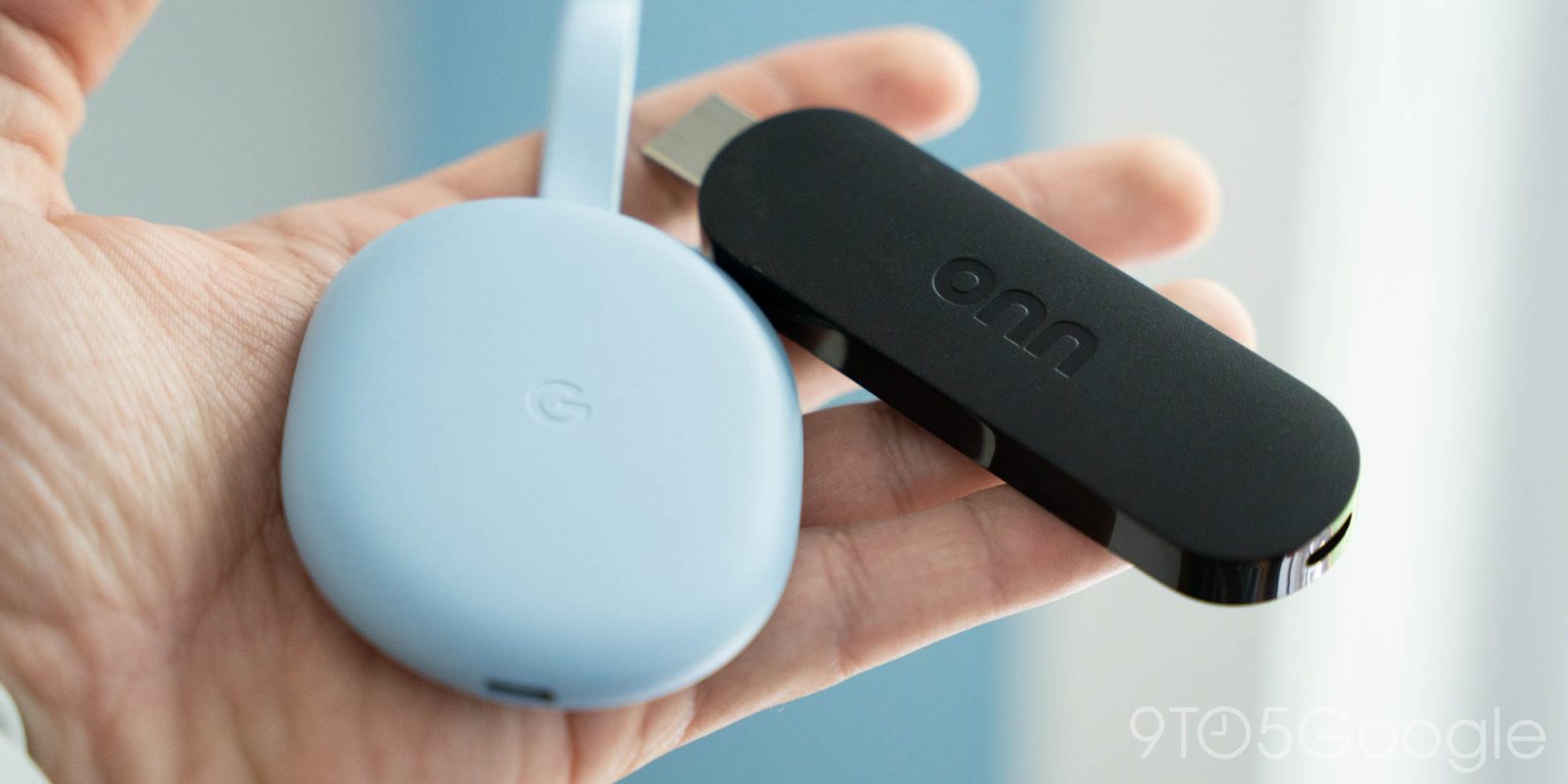
Walmart's new Onn 4K Google TV streaming stick has arrived, and it's being hailed as the perfect replacement for Google's own Chromecast with Google TV. This affordable device brings the full Google TV experience to any HDMI-equipped television, supporting 4K HDR, Dolby Vision, and Dolby Atmos. Whether you're upgrading from an older streaming stick or switching from Chromecast, this guide walks you through everything you need to know—from unboxing to advanced settings.
Prerequisites
Before you begin, ensure you have the following:
- HDMI-equipped TV with an available port (preferably HDMI 2.0 or higher for 4K 60fps)
- Stable Wi-Fi connection (2.4GHz or 5GHz; 5GHz recommended for 4K streaming)
- Google account for signing into Google TV and accessing the Play Store
- USB power adapter (5V/1A minimum; the stick comes with one, but you can use your TV's USB port if it provides enough power)
- Optional: If migrating from Chromecast with Google TV, have your old device ready to transfer settings.
Step-by-Step Instructions
1. Unboxing and Physical Setup
Open the box and locate the streaming stick, power cable, USB power adapter, HDMI extension cable, and remote control. Insert the streaming stick directly into your TV's HDMI port, or use the included extender if the port is hard to reach. Connect the power cable to the stick and plug the USB adapter into a wall outlet. For consistent power, avoid using your TV's USB port unless it's rated for at least 1A output.
Insert two AAA batteries into the remote control (not included in some regions; check your package).
2. Initial Power-On and Language Selection
Turn on your TV and select the HDMI input corresponding to the stick. You'll see the Google TV logo, followed by a language selection screen. Choose your preferred language using the remote's directional pad and press the OK button.
3. Connecting to Wi-Fi
The device will scan for available networks. Select your Wi-Fi network and enter the password using the on-screen keyboard. For best performance, choose a 5GHz network if available. If you have a dual-band router, ensure both bands use the same SSID or manually connect to the 5GHz SSID.
4. Signing into Google Account
You'll be prompted to sign in to your Google account. This enables access to Google TV's personalized recommendations, voice assistant, and the Google Play Store. Use the remote to enter your email and password. If you have two-factor authentication enabled, complete the verification step on your phone or computer.
5. Setting Up Google TV Interface
After signing in, you'll see a short tutorial about Google TV's interface—how to navigate, use the voice button, and access apps. Watch or skip it. Then you'll be asked to choose content preferences (movies, shows, YouTube, etc.). This helps Google tailor recommendations.
6. Customizing Home Screen and App Installation
From the home screen, scroll down to “Apps” and select “Get more apps” to browse the Play Store. Install popular streaming services like Netflix, Disney+, Hulu, and Amazon Prime Video. You can also pin apps to the “Favorites” row for quick access.
To rearrange apps, highlight an app, press the OK button, and select “Move”. Use the directional pad to reposition it.
7. Configuring Display and Audio Settings
Navigate to Settings > Display & Sound. Here you can adjust:
- Resolution: Match to your TV's native resolution (3840x2160 for 4K).
- HDR: Enable HDR if your TV supports it (Dolby Vision is preferred if available).
- Audio output: Choose between HDMI audio (PCM or passthrough) and/or Bluetooth audio if using wireless headphones.
- Dolby Audio: Enable Dolby Atmos if your sound system supports it.
8. Migrating from Chromecast with Google TV (Optional)
If you're replacing an old Chromecast with Google TV, you can transfer your saved Wi-Fi networks and some settings using the Google Home app:
- On your phone, open the Google Home app and select the old Chromecast device.
- Tap the Settings gear > “Factory reset” to clear the old device (this is optional but recommended after migration).
- On the new Onn stick, during first-time setup, you'll see a “Transfer from another device” prompt. Ensure your phone is on the same Wi-Fi, then follow the on-screen instructions to copy network credentials.
- Note: App installations and preferences are not transferred. You'll need to manually reinstall apps on the new device.
9. Using the Remote and Voice Control
The remote includes dedicated buttons for Netflix, YouTube, and Google Assistant. Press the microphone button to search, control smart home devices, or ask questions like “Play Stranger Things on Netflix.” For volume control, point the remote at your TV (or use IR learning if your TV brand is supported: go to Settings > Remotes & Accessories > Set up remote buttons).

10. Advanced Features: Ambient Mode and Guest Profiles
From the home screen, long-press the OK button on an empty background to activate Ambient Mode—a screensaver that shows photos from Google Photos or art. To create a guest profile, go to Settings > Accounts & Sign In > Add account. This is useful for sharing the device without mixing recommendations.
Common Mistakes
Using the TV's USB Port for Power
Many users plug the stick into their TV's USB port for convenience, but most TV USB ports deliver only 0.5A, causing intermittent power loss and performance issues. Always use the included wall adapter.
Skipping the Wi-Fi Setup During Initial Boot
If you skip Wi-Fi setup, you won't be able to use voice commands or download apps until you connect later. It's best to complete the setup fully the first time.
Forgetting to Enable HDR
Even if your TV supports HDR, the stick may default to SDR. Go to Display & Sound settings to enable HDR (and match content frame rate) for the best picture quality.
Not Updating the Device After Setup
After the initial setup, check for system updates: Settings > System > About > System update. Running outdated firmware can cause app crashes and streaming errors.
Overlooking the HDMI Extender
The included extender is not just for reach—it can reduce Wi-Fi interference if the stick is placed too close to other electronics. If you experience dropped connections, try using the extender.
Summary
Walmart's Onn 4K Google TV streaming stick is a cost-effective upgrade for anyone still using an older streaming device or Chromecast. With full support for 4K HDR, Dolby Atmos, and the intuitive Google TV interface, setup takes just minutes. In this guide, we covered unboxing, Wi-Fi configuration, account sign-in, app installation, display/audio tweaks, and migration from a previous device. Avoid the common pitfalls of underpowered USB ports and missed HDR settings, and you'll enjoy a seamless streaming experience. For those seeking a budget-friendly pro option, Walmart also offers a Pro model with more storage and a faster processor.
Related Articles
- How to Design Stable Interfaces for Streaming Content: A Step-by-Step Guide
- Navigating Netflix’s Ad-Supported Plan: What the Expansion Means for Subscribers
- How Spotify Wrapped 2025 Uncovers Your Year's Listening Story: A Technical Guide
- How to Unlock Your Spotify Anniversary Time Capsule: A Step-by-Step Guide
- Designing Robust LLM Evaluation Pipelines: A Funnel Approach for Reliable Quality Assessment
- Streamlining LLM Evaluation: A Funnel-Based Approach for Better Experiments
- Designing a Funnel-Based Evaluation Strategy for LLM Experiments
- How to Understand the Surge of AI-Generated Music on Streaming Platforms