Mastering Python Environments in VS Code: Your Questions Answered
The Python Environments Extension for VS Code, now generally available after a year in preview, brings a unified workflow to manage environments, interpreters, and packages. Historically, Python developers juggled tools like venv, conda, pyenv, poetry, and pipenv, each with its own quirks. This extension consolidates everything into one seamless experience, powered by the fast Rust-based PET scanner. Below, we answer common questions to help you get the most out of it.
What is the Python Environments Extension and how does it improve Python development in VS Code?
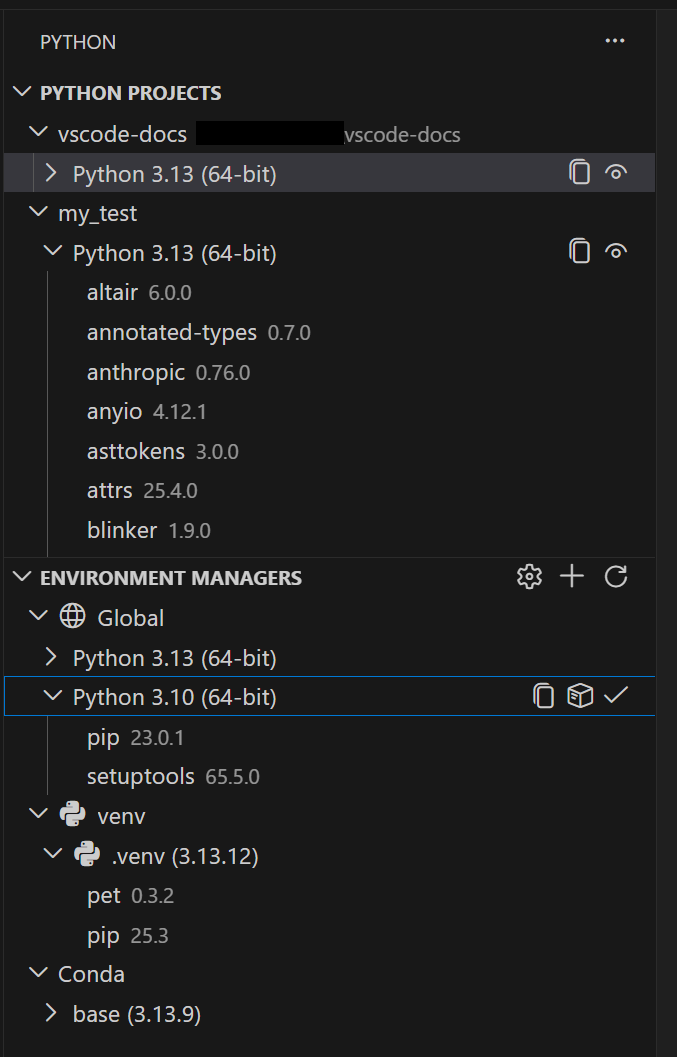
The Python Environments Extension is a dedicated VS Code extension that works alongside the core Python extension to provide a unified interface for managing Python environments. Before this extension, developers had to switch between multiple CLI tools and manually track which environment belonged to which project. This extension eliminates that fragmentation by automatically discovering environments from all major managers—venv, conda, pyenv, poetry, pipenv, and system Python installs—and presenting them in a single UI. You can create, delete, switch, and manage environments without leaving the editor. For most users, setup is effortless: open a Python file and environments are found automatically. The extension also brings performance improvements through its use of PET (Python Environment Tool), a Rust-based scanner that reliably finds environments across platforms by checking PATH, known locations, and configurable paths.
How does the extension automatically discover environments from different tools?
Discovery is powered by PET (Python Environment Tool), a fast Rust-based scanner that has already been proven in the core Python extension. It scans your system by checking the PATH environment variable, known installation directories (like ~/.venv or conda envs), and any custom search paths you configure. This means environments created by venv, conda, pyenv, poetry, pipenv, and even system Python installs are all detected. The scanner is designed to be reliable across Windows, macOS, and Linux. If you store environments in non-standard locations, you can set workspace-level glob patterns or global search paths (pointing to shared directories outside your workspace). The extension then presents these environments in the Environment Manager view, allowing you to switch between them with a single click.
How does the extension leverage uv for faster environment creation?
If you have uv installed (a fast Python package installer and resolver), the extension automatically uses it for creating venv environments and installing packages. This is enabled by default via the setting python-envs.alwaysUseUv. uv significantly speeds up these operations compared to standard tools, especially in large projects with many dependencies. For example, creating a new environment and installing packages from a requirements.txt can be done in seconds rather than minutes. The extension seamlessly falls back to the default tool if uv is not present. This integration means you get the speed benefits without any extra configuration—just install uv and the extension handles the rest.
What are Quick Create and Custom Create options?
Getting a new environment is now convenient with two distinct workflows. Quick Create is accessible via the plus (+) button in the Environment Manager view. It builds an environment using your default manager (typically venv), the latest Python version, and automatically installs any workspace dependencies it finds in requirements.txt or pyproject.toml. This gives you a working environment in seconds with zero configuration. For more control, Custom Create is available through the Command Palette (Python: Create Environment). Here you can select the environment manager (venv or conda), choose a specific Python version, name the environment, and specify which dependency files to install from. Both options support direct creation for venv and conda; for managers like pyenv, poetry, and pipenv, the extension discovers environments you create manually with their CLI tools.

What are Python Projects and how do they handle environments in monorepos?
Python Projects is a feature that lets you map environments to specific folders or files within a workspace. This is particularly useful in monorepos where different directories contain separate Python projects with different dependencies and Python versions. Instead of manually switching environments, you can associate each folder or requirements.txt with its desired environment. The extension then automatically activates the correct environment when you open a file from that folder. For instance, if your monorepo has a backend/ folder using Python 3.10 and a frontend/ folder using Python 3.11, you can set up Python Projects to always use the right environment for each part. This streamlines development by eliminating environment conflicts and reduces the mental overhead of remembering which environment is active.
How can I configure the extension for non-standard environment locations?
By default, the extension scans standard locations like PATH, known venv directories, and conda envs. If you store environments in non-standard paths (e.g., a shared network drive or a custom folder), you can add search paths at two levels. Workspace-level paths are configured using glob patterns in your .vscode/settings.json file (e.g., "python-envs.searchPaths": ["/path/to/envs/*"]). Global search paths can be set in VS Code settings (user or remote) for directories that are shared across multiple projects. This flexibility ensures that no environment is missed, regardless of where it resides. The extension will automatically update the Environment Manager view when new environments appear in these locations.
How do I enable the extension and what is the transition plan?
The Python Environments Extension is now generally available. For existing Python extension users, the environment workflows will gradually switch to the new extension automatically over the next few weeks. If you want to start using it immediately, set the setting python.useEnvsExtension to true in your VS Code settings. Once enabled, the extension works alongside the Python extension with no additional setup—just open a Python file, and your environments are discovered. It coexists peacefully and does not break any existing workflows. If you prefer to keep using the old environment management, you can disable the extension until the automatic rollout. The extension's UI is intuitive: you'll see an Environment Manager view and options to Quick Create or Custom Create environments. For teams, the settings can be committed to the workspace .vscode/settings.json to ensure consistency.
Related Articles
- Mastering Observability from Your Terminal: How gcx Empowers Engineers and AI Agents
- Unlock Terminal-Based Observability for You and Your AI Agents with gcx
- HashiCorp Vault Unveils Native AI Agent Security Framework: Ephemeral, Identity-Based Access Controls Address Autonomous System Risks
- The Block Protocol: Revolutionizing Web Content with Interchangeable Blocks
- Microsoft Defender Misidentifies Trusted DigiCert Certificates as Malware: What You Need to Know
- The AI Revolution in Software Development: Reshaping Tools, Roles, and Lifecycles
- Local-First Architecture: Beyond Offline-First and Service Workers
- Exploring Aerion: A Modern Desktop Email Client Worth Your Time